Quick Start
This guide will help you quickly understand how to use the Short Drama Platform admin backend.
1. Acess Admin Backend
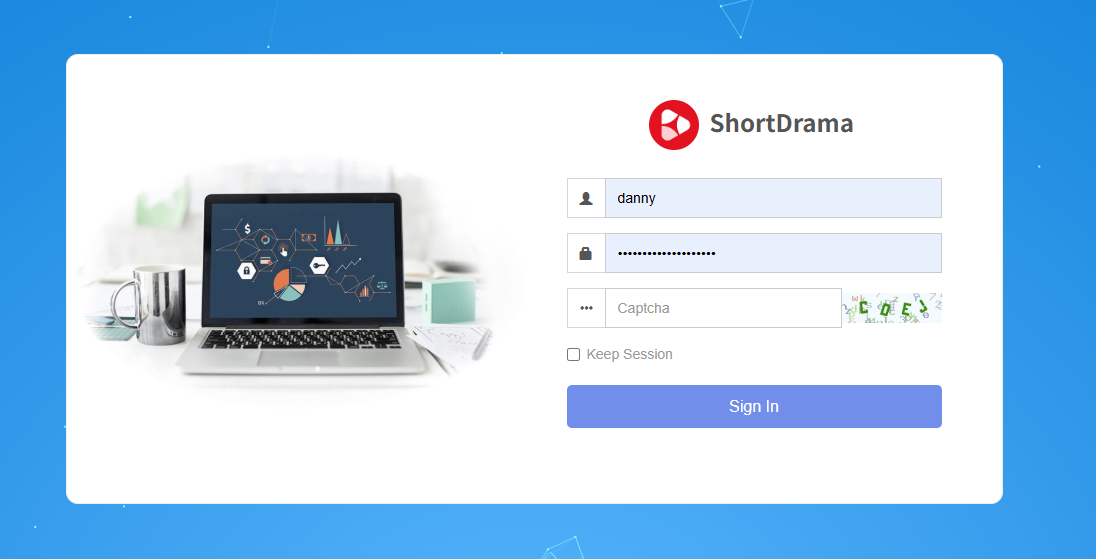
First, you need to log in to the admin backend:
- Open your browser and access the backend address:
https://your_domain_name.com/backend.php - Enter your admin username and password
- Click the “Login” button
Note
If you don’t have an admin account yet, please contact the system administrator to create one for you.
1.1 Interface Introduction
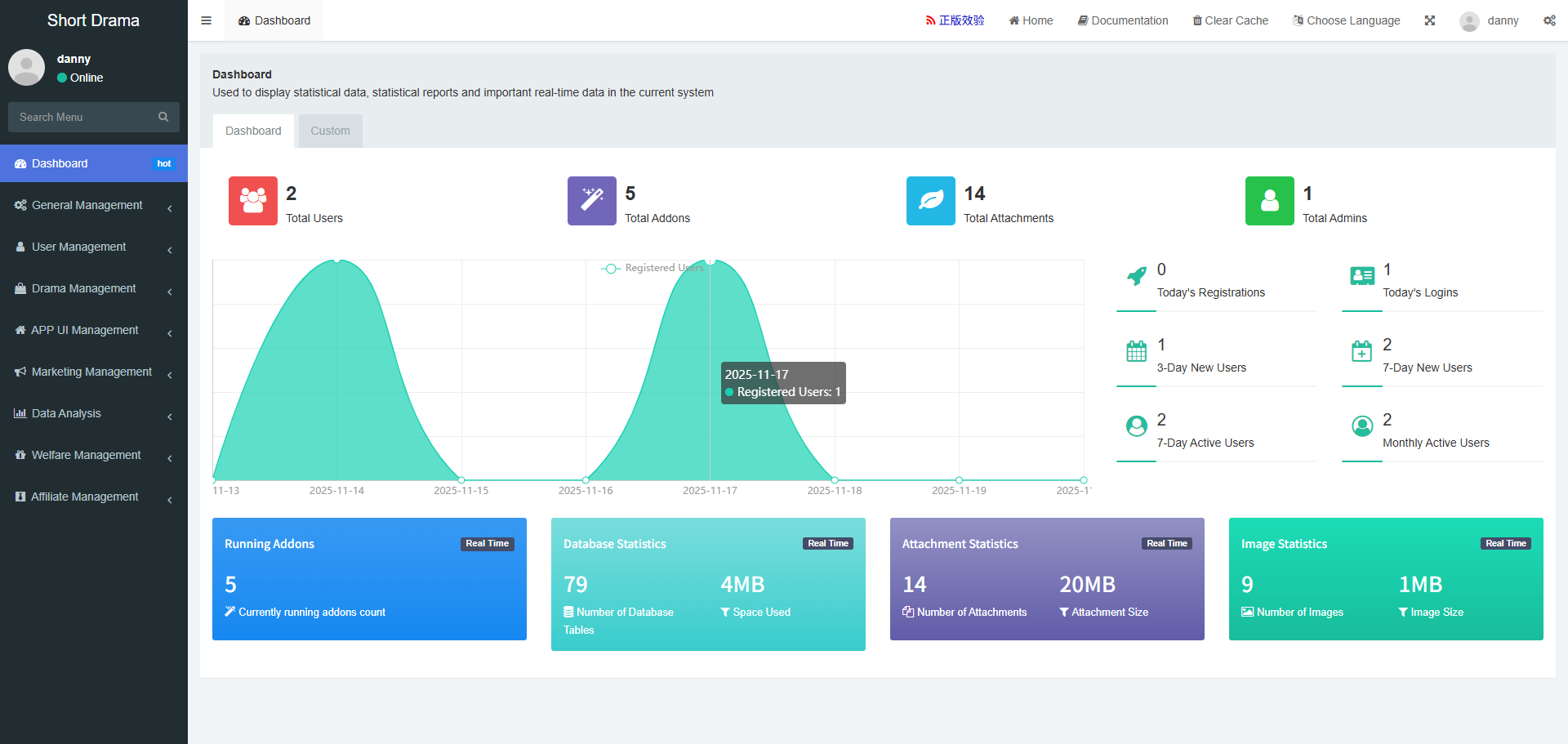
The admin interface features three main areas:
Navigation & Controls
- Left Sidebar: Collapsible menu with core modules - Dashboard, User/Drama Management, APP UI settings, and specialized functions
- Top Toolbar: Global actions including verification tools and user controls
Main Dashboard
Central statistics panel showing:
- User Metrics: Total users, daily registrations/logins, active users (monthly/weekly/daily)
- System Stats: Addons, attachments, database info
- Real-time Charts: User registration trends and activity graphs
Key Modules
- User Management: Account creation and permissions
- Drama Management: Content organization
- Order/Financial: Transaction handling
- System Settings: Global configuration
2. Accessing the Frontend
Warning
Both the web version and Android APK are testing applications for development and evaluation purposes.
Users can access the short drama platform frontend through two methods:
| Web Version | Mobile App | Screenshot |
|---|---|---|
Access the H5 web version at: https://your_domain_name.com/h5 |
📱 Download Android APK | 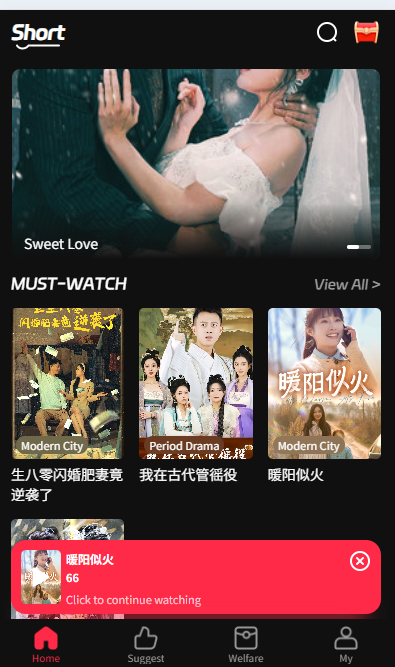
|
3. User Registration Process
Info
Note: Currently, the admin backend does not support direct creation of regular users. Users need to register through the frontend interface.
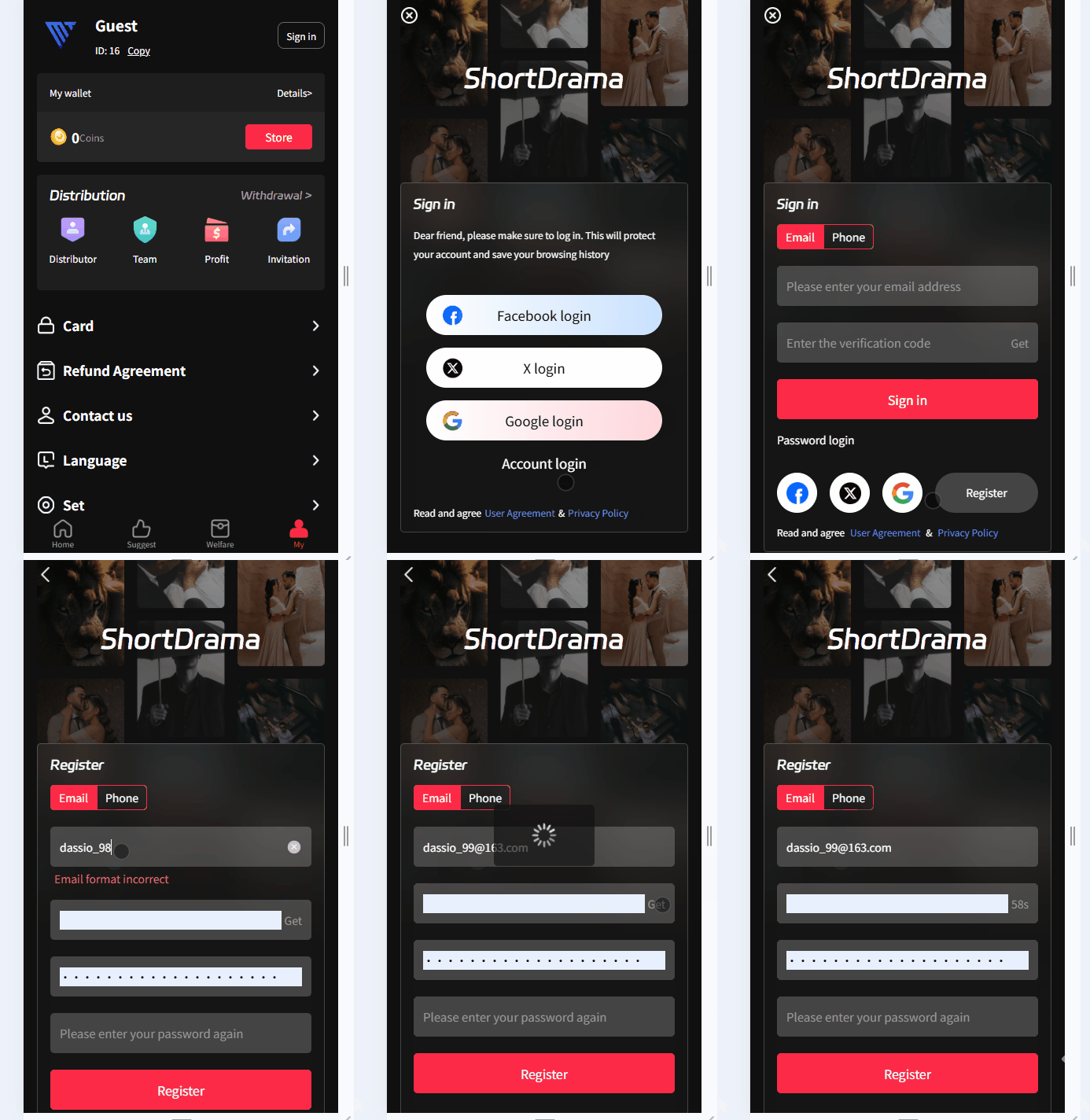
Users can register through the frontend using two methods:
Email Verification (Recommended)
- Users enter their email address during registration
- System sends verification email to user’s email address
- Users complete registration by verifying their email
Phone Number Verification (Not Configured)
- Phone number verification feature is not configured on the showcase website
- Currently only email verification registration is supported
After users complete registration, administrators can view and manage these regular user accounts through the “User Management” section in the backend.
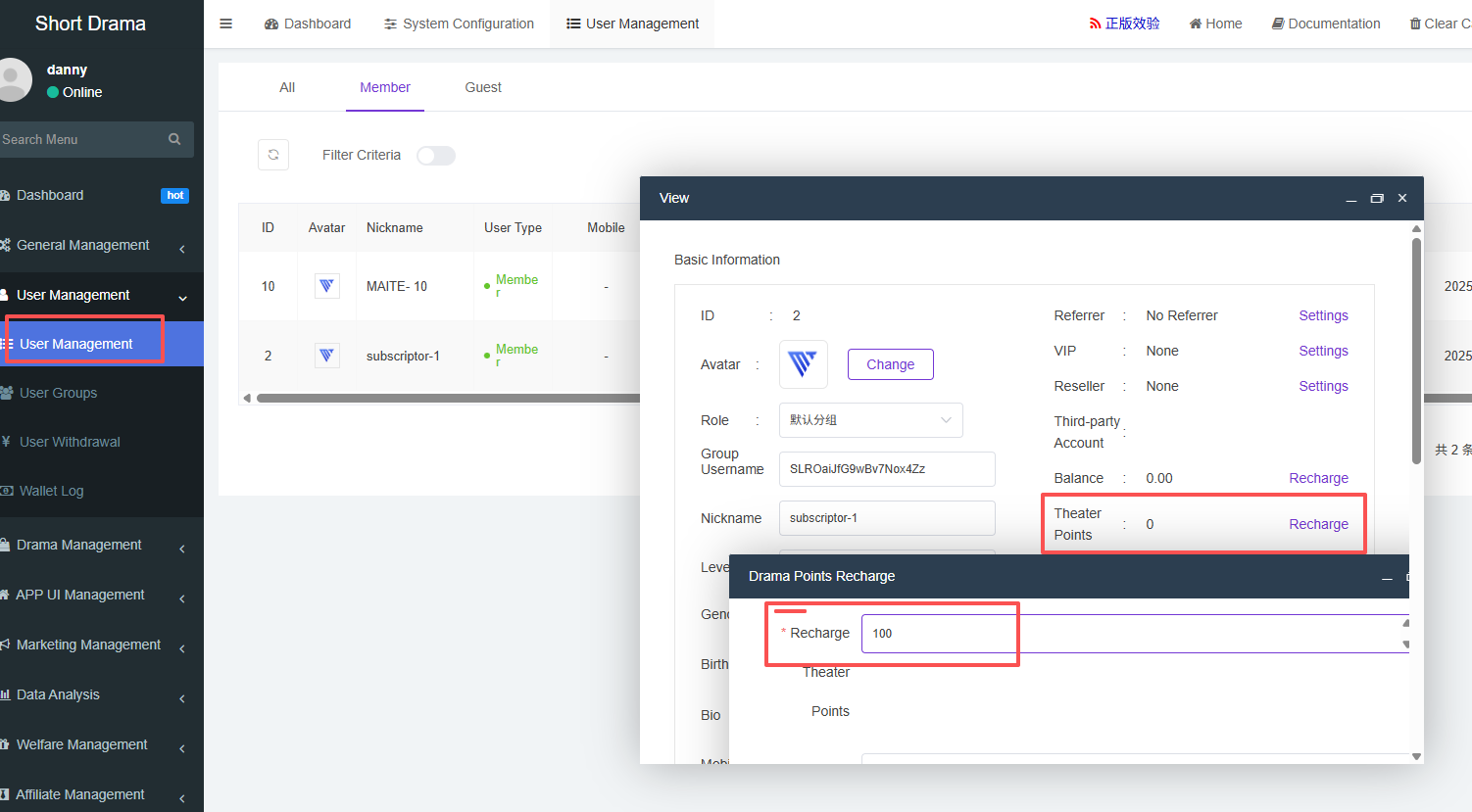
4. Set User Viewing Points
Viewing points (also called “viewing coupons” or “platform coins”) are resources consumed by users when watching dramas. To set initial viewing points for new users:
- Find the newly created user in the user list
- Click the “Details” button on the right side of the user row
- Find the “Theater Points” field in the user information page
- Enter the initial points to be gifted (e.g., 100 points)
- Click the “Save” button
Tip
You can create task to give user some initial points after successfully complete registeration
For more details about the user points and rewards system, see the User Points & Rewards System documentation.
Next Steps
After completing the above basic operations, you can:
- Learn more about Drama Management - Manage your content library, upload new dramas, and organize episodes
If you encounter any problems during use, please contact the technical support team.